


Wikipedia
Client UI Guide
Hover over a marker to see what each part of the interface does.
Interface Overview
Shinobi Legacy Client
1
Character Info Bar
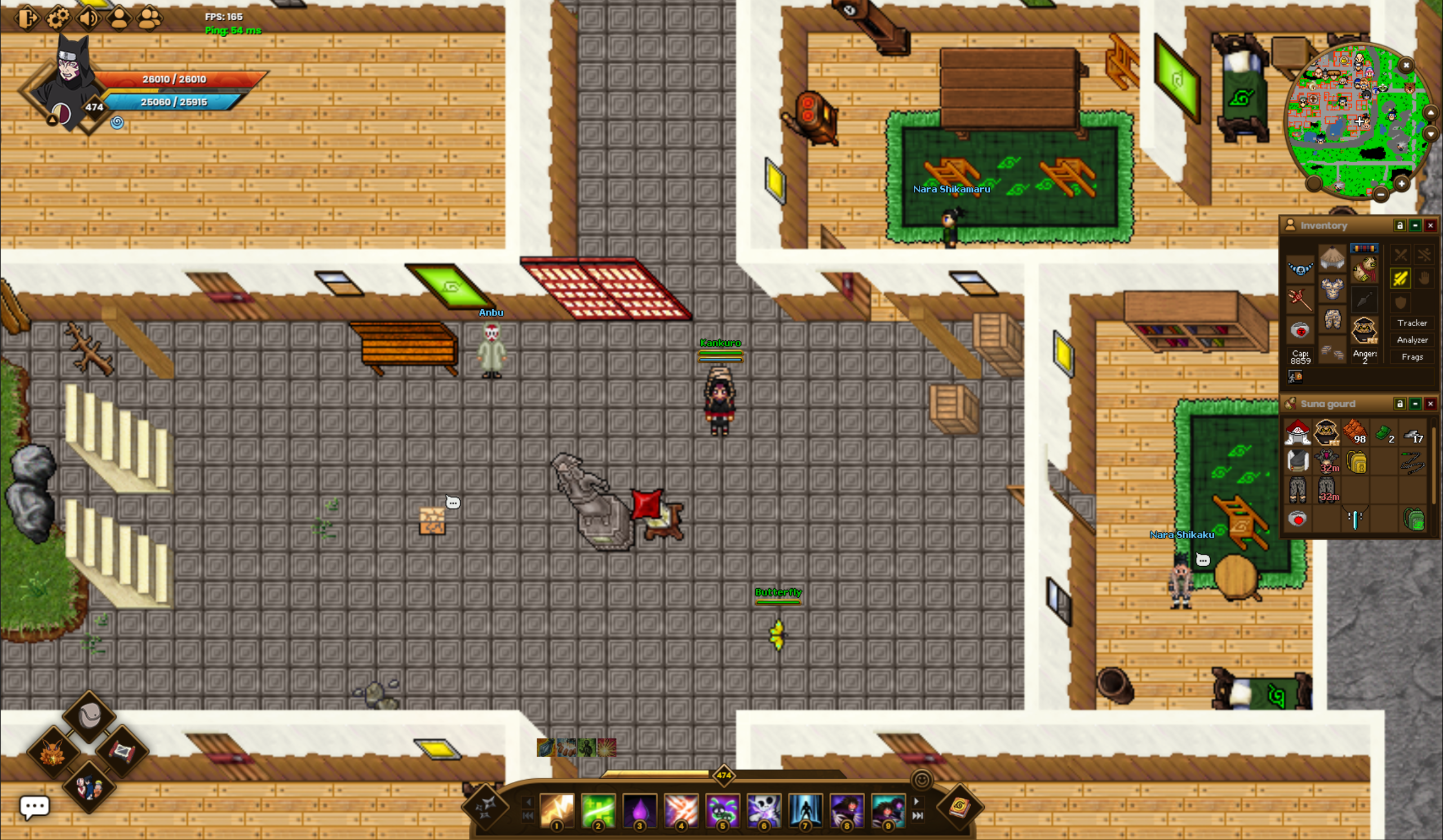
Shows your character's portrait, current HP, and current Chakra, along with your level and next level state. The blue icon below tracks your Anger Points. The arrow shows your current transformation state — pointing down means you can transform further, pointing up means you've reached max transformation. Click the arrow to transform.
2
Minimap Panel
Displays the surrounding area and nearby players. Buttons: X centers the map on your character, ↑ goes up a floor, ↓ goes down a floor, + zooms in, − zooms out. The blank button toggles the minimap and can be used to search for monsters, NPCs, quest locations, and more.
3
Inventory Panel
Equipment slots and quick access to Tracker, Analyzer, and Frags panels. Allows you also to switch between fight modes and shows condition states.
4
Action Bar
Quick-cast slots for jutsu, with a experience bar above. The smiley face icon toggles Stamina — a smiling face means stamina is on, a sad face means it's off. Quick access to Battle, and Quest Tracker.
5
Quick Actions Panel
Panel with buttons for frequently used menus such as Inventory, Item Shop, Dungeons, Guild Management Panel.
6
Active Cooldowns
Icons represent Cooldown Groups such as: Attack, Healing, Support, Special.
7
Connection Info
Displays your current FPS and ping to the server, useful for diagnosing lag or performance issues.
8
Chat Toggle
Toggles the chat window between hidden and shown.
9
Character Functions
Hold CTRL and right-click on your character to enable Quick Loot and automatically collect items into your bag.
Reference
Elements
1Character Info Bar
Shows your character's portrait, current HP, and current Chakra, along with your level and next level state. The blue icon below tracks your Anger Points. The arrow shows your current transformation state — pointing down means you can transform further, pointing up means you've reached max transformation. Click the arrow to transform.
2Minimap Panel
Displays the surrounding area and nearby players. Buttons: X centers the map on your character, ↑ goes up a floor, ↓ goes down a floor, + zooms in, − zooms out. The blank button toggles the minimap and can be used to search for monsters, NPCs, quest locations, and more.
3Inventory Panel
Equipment slots and quick access to Tracker, Analyzer, and Frags panels. Allows you also to switch between fight modes and shows condition states.
4Action Bar
Quick-cast slots for jutsu, with a experience bar above. The smiley face icon toggles Stamina — a smiling face means stamina is on, a sad face means it's off. Quick access to Battle, and Quest Tracker.
5Quick Actions Panel
Panel with buttons for frequently used menus such as Inventory, Item Shop, Dungeons, Guild Management Panel.
6Active Cooldowns
Icons represent Cooldown Groups such as: Attack, Healing, Support, Special.
7Connection Info
Displays your current FPS and ping to the server, useful for diagnosing lag or performance issues.
8Chat Toggle
Toggles the chat window between hidden and shown.
9Quick Loot Toggle
Toggles Quick Loot to automatically collect items into your bag.